
Google Play Store
Create a Google Play service account and publish your app to the Google Play Store
Google Play Store
This guide walks you through creating a Google Play service account and publishing your app to the Google Play Store.
Prerequisites
- A Google Play Developer account (requires a one-time registration fee)
- Access to Google Cloud Console
Create a Google Play service account
The starti.app team needs a service account to manage builds and submissions on your behalf.
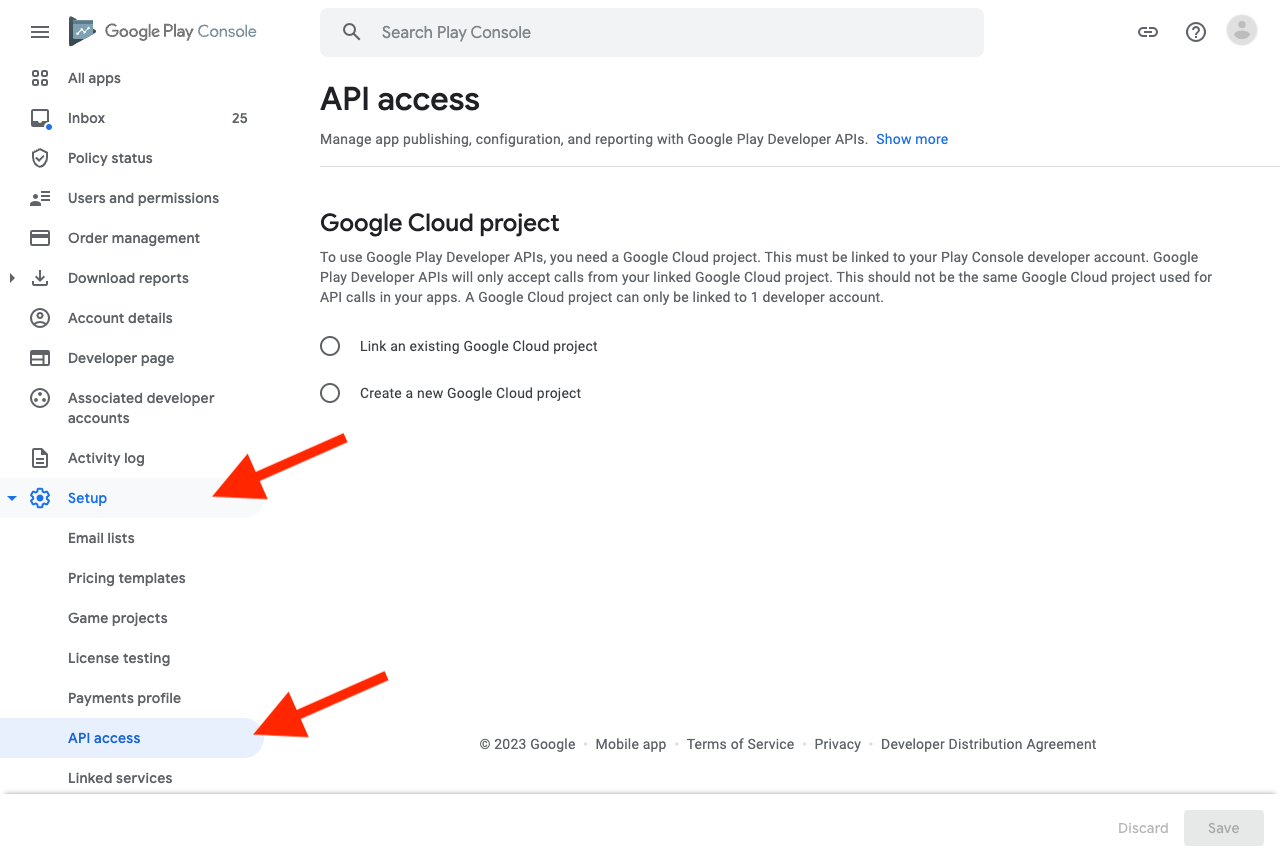
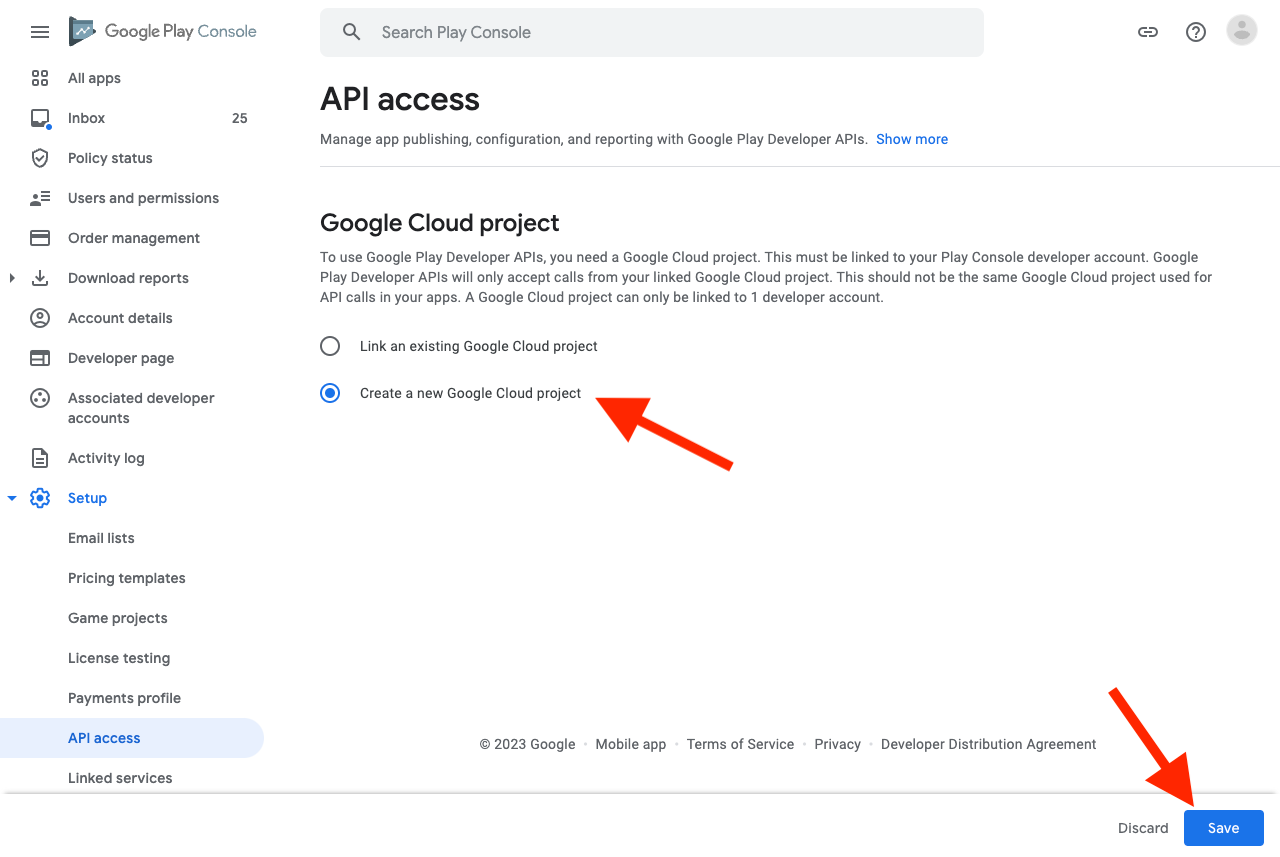
Open Google Cloud Platform
Click View in Google Cloud Platform to configure the project.
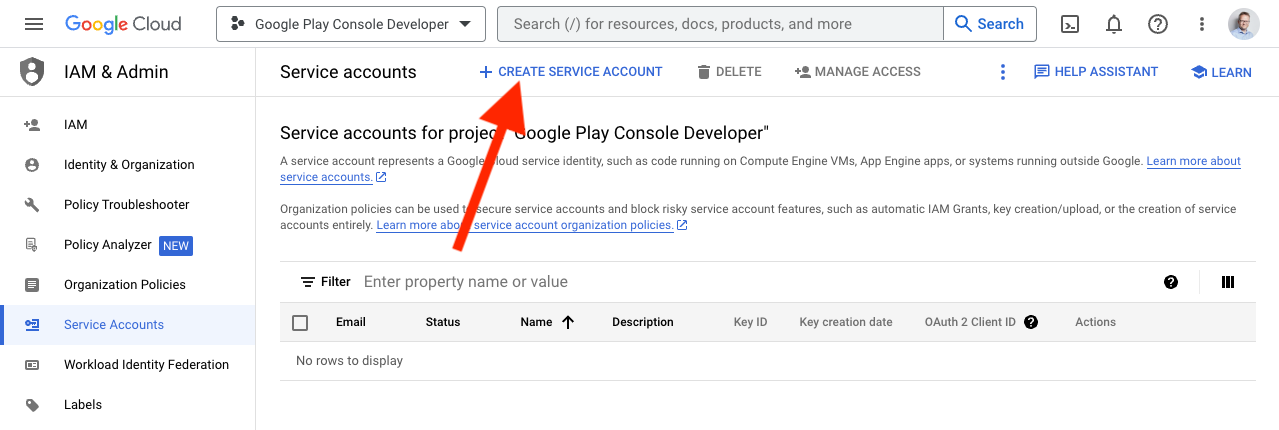
Create a service account
In the Google Cloud Console:
- Go to IAM & Admin > Service Accounts
- Click CREATE SERVICE ACCOUNT
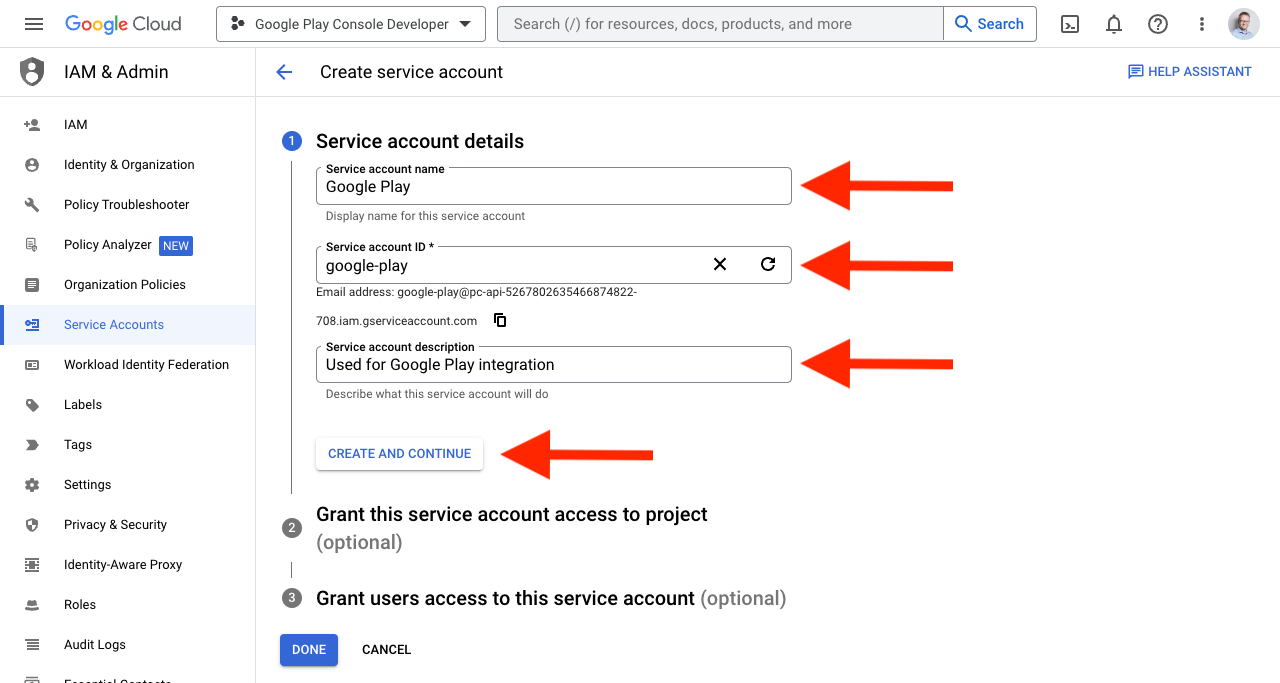
Configure the service account
Fill in the details:
- Name:
Google Play(or similar) - ID:
google-play - Description:
Used for the Google Play integration
Click CREATE AND CONTINUE.
Set permissions
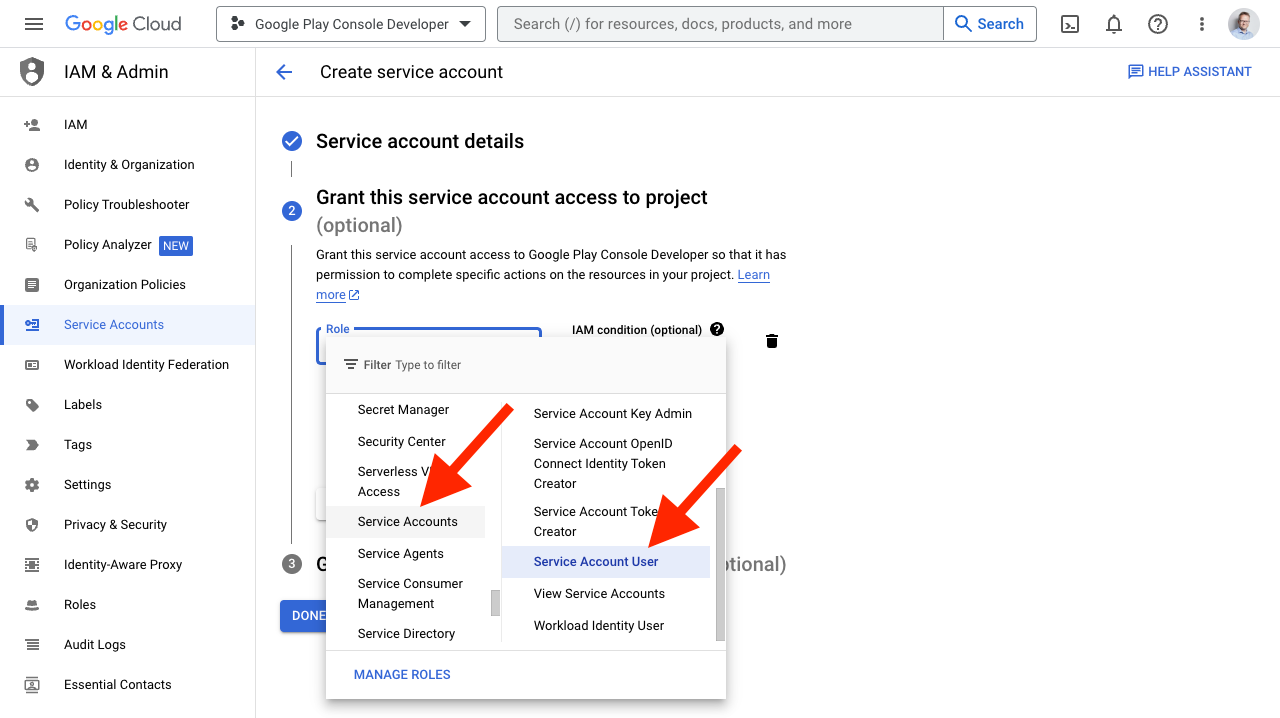
Under Role, select Service Accounts > Service Account User. Click Continue, then Done.
Create a JSON key
- Find the new service account in the list
- Click the three-dot menu and select Manage Keys
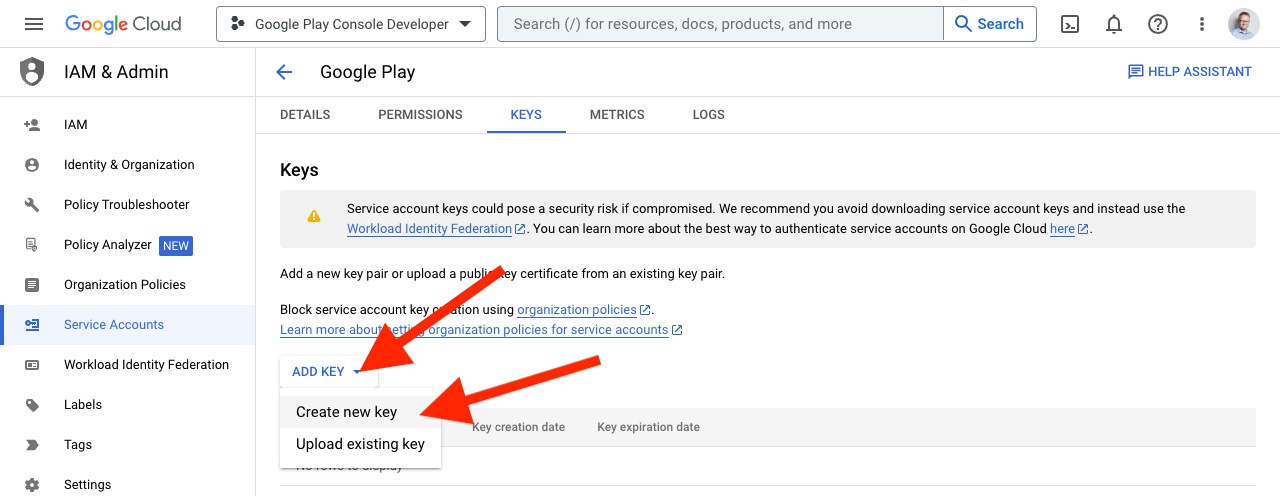
- Click ADD KEY > Create new key
- Select JSON and click CREATE
A JSON file will download automatically. This file needs to be sent to the starti.app team.
Grant Play Console permissions
Go back to Google Play Console > Setup > API access.
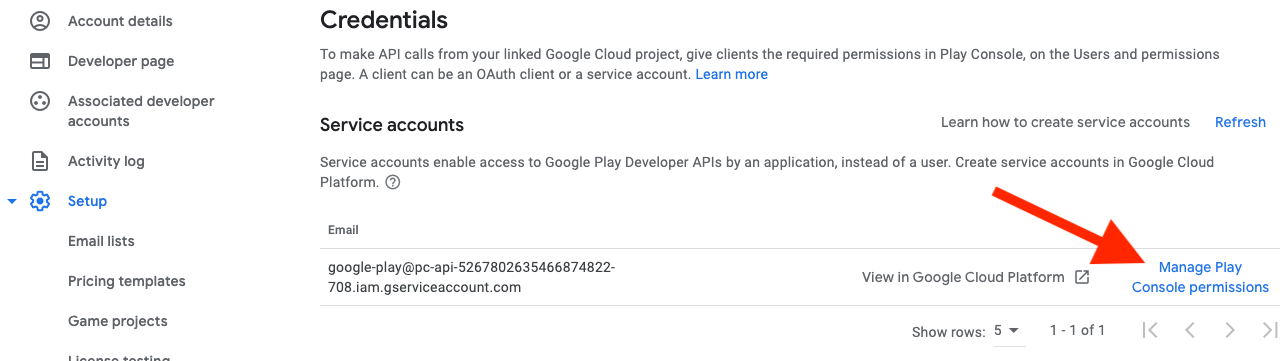
- Scroll down to find the new service account
- Click Manage Play Console permissions
- Click Invite user and then Send invitation
Send the key file
Email the downloaded JSON key file to developer@starti.app.
What happens next
The starti.app team will:
- Configure your app's build pipeline
- Upload your first build to Google Play Console
- Help you set up your store listing
- Submit the app for review
Updating your app
After the initial setup:
- Web-only changes take effect immediately (no store update needed)
- For native changes, the starti.app team builds and uploads a new version
- Google Play review is typically faster than Apple (hours, not days)
Web content changes do not require a new Play Store submission. Only changes to native configuration or permissions require a new build.